Invite guests
Download and print the QR code
You save your event’s QR code as an image or print it as a table card.
For hosts
How it works
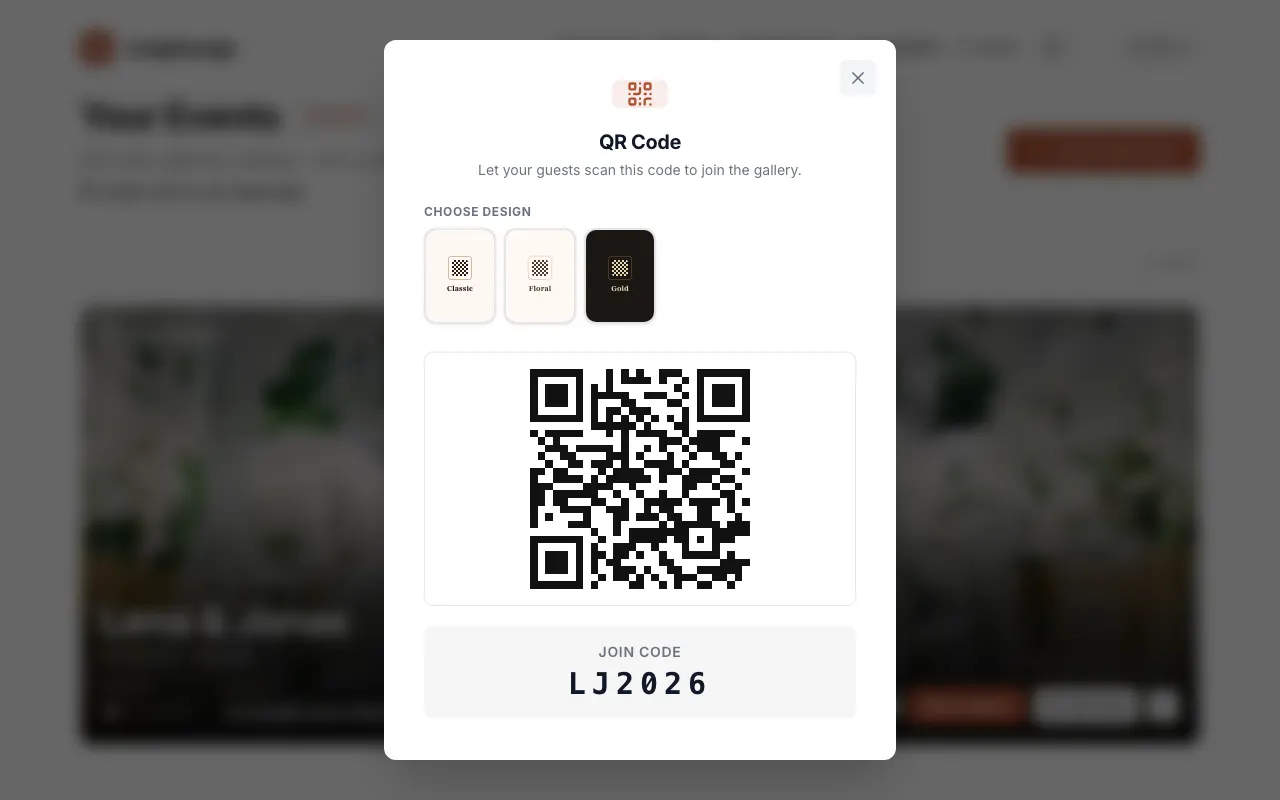
On the dashboard, tap QR Code next to your event.

Under “Choose Design,” pick a style. With Download as Image, you save the code – for printing, for invitations, or for the screen.
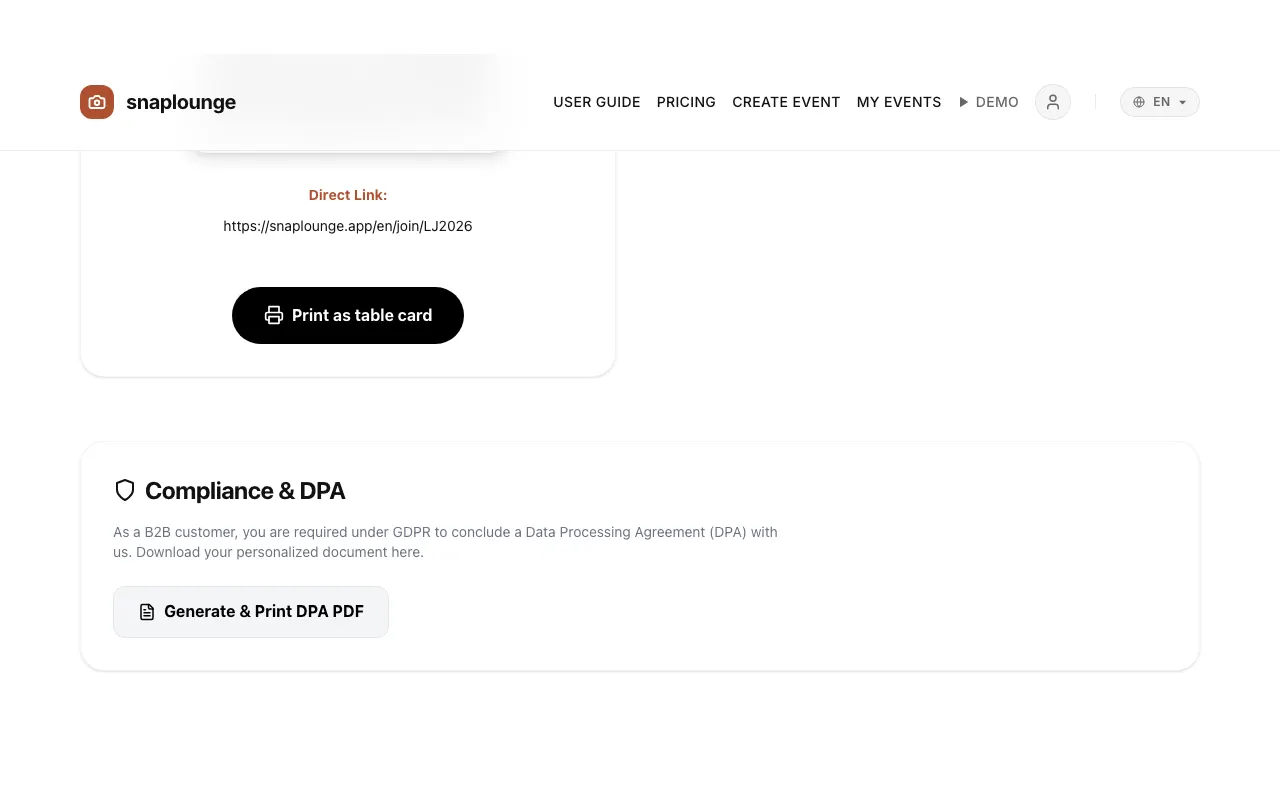
For a finished table card: open the event management page, scroll down, and tap Print as table card. The event name, QR code, and a short sentence for your guests are printed.
Did this help you?
Goes well with
- Table cards with QR codeDesign table cards with your event’s QR code and download them as a PDF for printing.
- Share the link, e.g. via WhatsAppSend the link to your event to the family group or by message – one tap is enough to join in.
- Share photos as a guestScan the QR code, enter your first name, take photos – your pictures land in the event’s gallery right away.